Title: Bought a New HP Printer But Couldn't Install It! 😅 | My Printer Support Experience
Hey everyone!
Today, I want to share a little experience I recently had with my new printer.
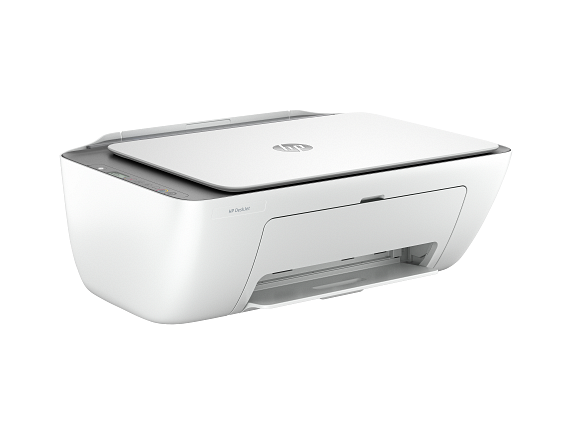
So, I recently purchased a brand-new HP DeskJet 2135 Series printer.
I was really excited to use it, but there was just one problem. I had no idea how to install it or connect it to my computer!
I wasn't sure which drivers I needed to download, how to set it up, or what steps I needed to follow.
So, I decided to search on Google for help with installing my HP printer.
While searching, I came across a website called Usageeks LLC and link is https://usageeksllc.com/
I visited their HP printer support page, where I found a phone number. I decided to give them a call and explain my problem.
I told them that I had recently purchased an HP DeskJet 2135 Series printer and needed help installing it on my computer.
The support representative listened to my issue and guided me through the installation process step by step.
What I really appreciated was how clearly and easily they explained everything.
They helped me understand the installation process, and finally, I was able to get my printer properly set up and working!
I just want to say thank you to the team for helping me out. I really appreciate their assistance and the time they took to guide me through the process.
If you're also having trouble installing your printer or need technical assistance, you can visit their website and check out the available support options.
They also list support options for other popular printer brands, including Epson, Canon, and Brother, in addition to HP.
I'll leave the website links in the video description below.
Thanks again to Usageeks for the help!
That's all for today's video. I hope my experience was helpful to anyone dealing with printer installation issues.
links are
https://usageeksllc.com/support/hp-printer-support.html
>https://usageeksllc.com/support/epson-printer-support.html
https://usageeksllc.com/support/brother-printer-support.html
HP Printer Support
Help with HP printer setup, connection problems, offline messages, print jobs, and scanning.
Common HP support requests
Setup and connection
Discuss the printer model, compatible operating system, official driver, and USB or network connection.
Offline or queued jobs
Identify whether the printer is offline on all devices or only one. Record the print queue status and any screen message.
HP app and device discovery
Check whether the printer is visible in your HP app or operating-system printer settings. Record the model and the connection method.
Choose the right support route
Start with the exact product and symptom
Check whether the printer is visible in your HP app or operating-system printer settings. Record the model and the connection method.
USA Geeks can discuss a paid troubleshooting service for software and configuration issues. Manufacturer warranties, product replacement, account ownership, subscription billing, and official downloads should be handled through the product maker or seller.
Before remote assistance begins
Confirm what work is proposed, the price, and whether a remote session is appropriate. Keep your files backed up and remain present during any session you authorize.
Do not send account passwords, one-time codes, or license credentials in an initial email.
Review pricing and scope
Check the HP printer and computer separately
A printer can be ready on its own display while a computer still reports it as offline. Compare the printer’s connection status, a test page, and the queue on the affected computer. Use the exact model when looking up official HP setup or driver information.
- Record the model and whether the connection is USB, Wi-Fi, or Ethernet.
- Compare a printer test page with a document sent from the computer.
- Check whether another device on the same network can print.
- Use official HP support for model instructions, downloads, and warranty questions.
Useful checks before you contact us
HP support questions
Where can I get official HP drivers?
Does USA Geeks handle HP warranties or subscriptions?
What should I have ready before calling?
Related services and information
Talk through your next step.
Describe the problem or project. We will discuss the scope and price before any work is agreed.
What to check before requesting HP printer help
These basic steps may solve common problems without a support session. Only download printer drivers from the manufacturer’s official website.
- Confirm that the printer is powered on and shows no paper jam or ink alert.
- Check the printer’s Wi-Fi connection and verify that the computer uses the same local network.
- On Windows, open Settings → Bluetooth & devices → Printers & scanners and check the printer status.
- If jobs are stuck, cancel the queue, restart the printer and computer, and try a test page.
If the problem continues, note the exact printer model, any error code, your operating system and whether the connection is USB or Wi-Fi before contacting an independent technician.

Comments
Post a Comment